
Help
Help & guide
Last updated: September 19, 2026
This is a complete walkthrough of the Pro workspace — every tab, what it does, and why it's there. New to Pro? See what's included and the current price first, or the Welcome page for a faster five-step version of just the "how do I start" part. This page goes deeper, section by section, with real screenshots.
Overview
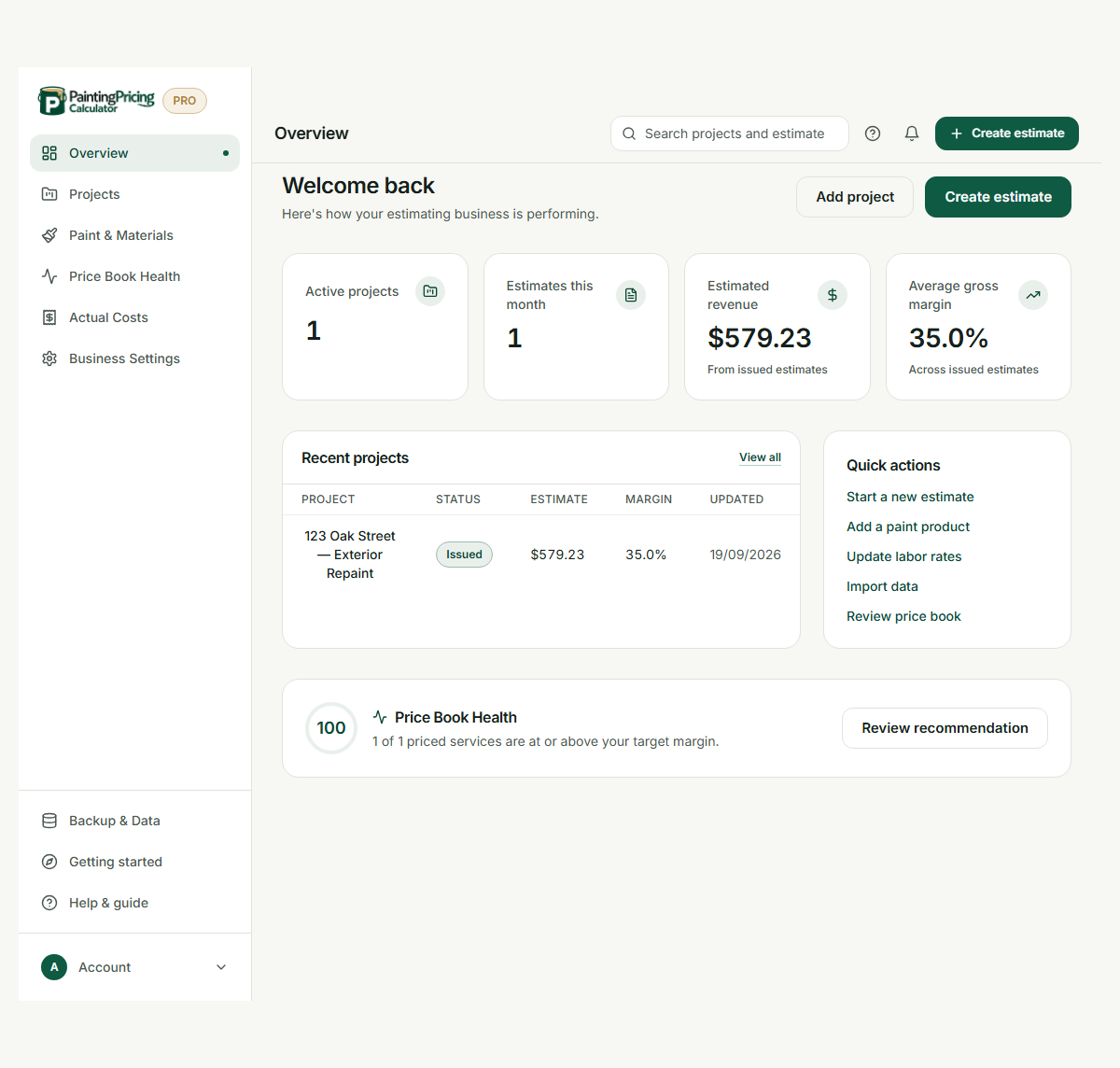
The dashboard you land on when you open Pro. Four at-a-glance numbers — active projects, estimates issued this month, estimated revenue, and your average gross margin — followed by your most recently updated projects, a Quick actions panel, and a Price Book Health summary with how many of your priced services are at or above your target margin.
Why it helps you: it's a snapshot of how your estimating business is actually doing, not just a place to start a new quote — you see at a glance whether recent jobs cleared your target margin before you dig into any one project. A brand-new, empty workspace shows a five-step "how to get started" guide here instead, so the very first screen you see tells you exactly what to do next.
Business settings
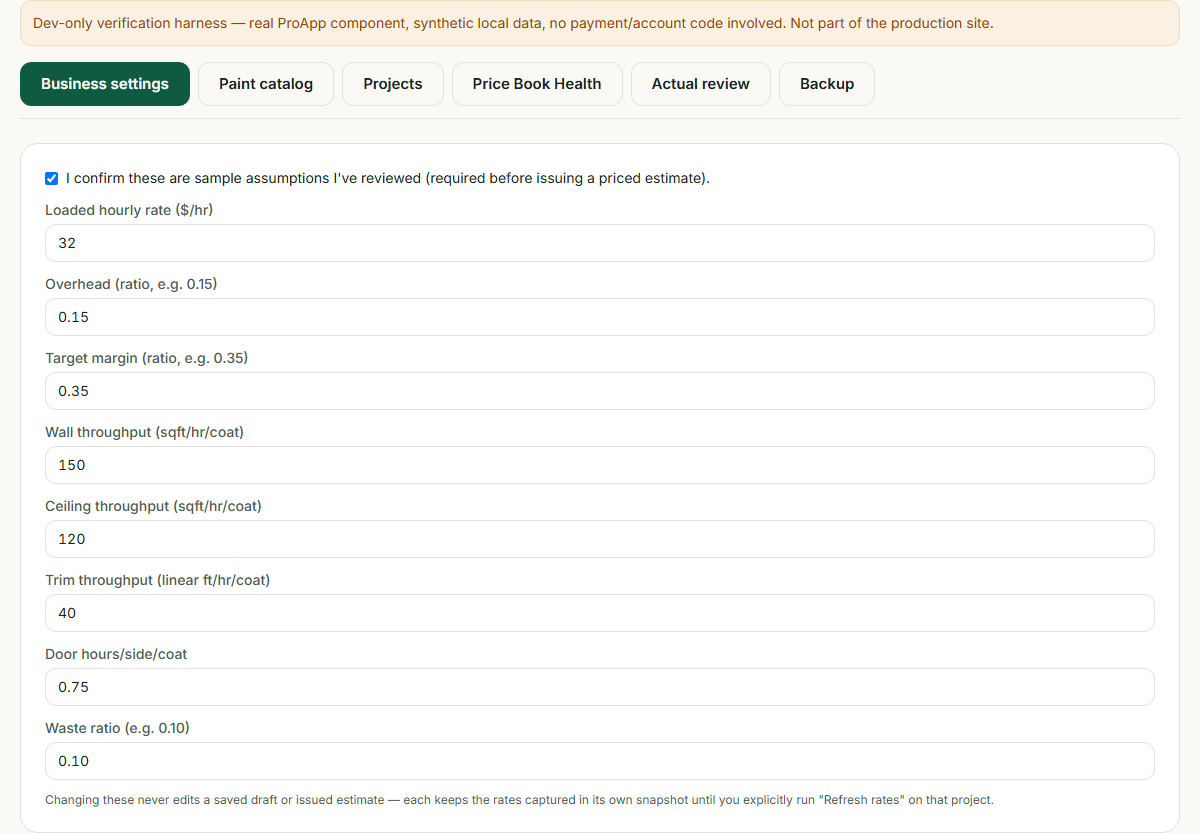
This is where you set the numbers every estimate is built from: your loaded hourly rate, overhead ratio, target margin, and how fast you cover a wall, ceiling, trim run, or door (per coat). Sensible defaults are pre-filled so you can start immediately — but the sooner you set these to your real numbers, the less re-work later.
Why it helps you: every project starts from a snapshot of these settings, so you only enter your rates once instead of re-typing them into every estimate. Changing a setting here never silently rewrites an estimate you've already saved — a project only picks up new numbers when you explicitly run a rate refresh on it, so an old quote can't drift out from under you.
Paint & Materials
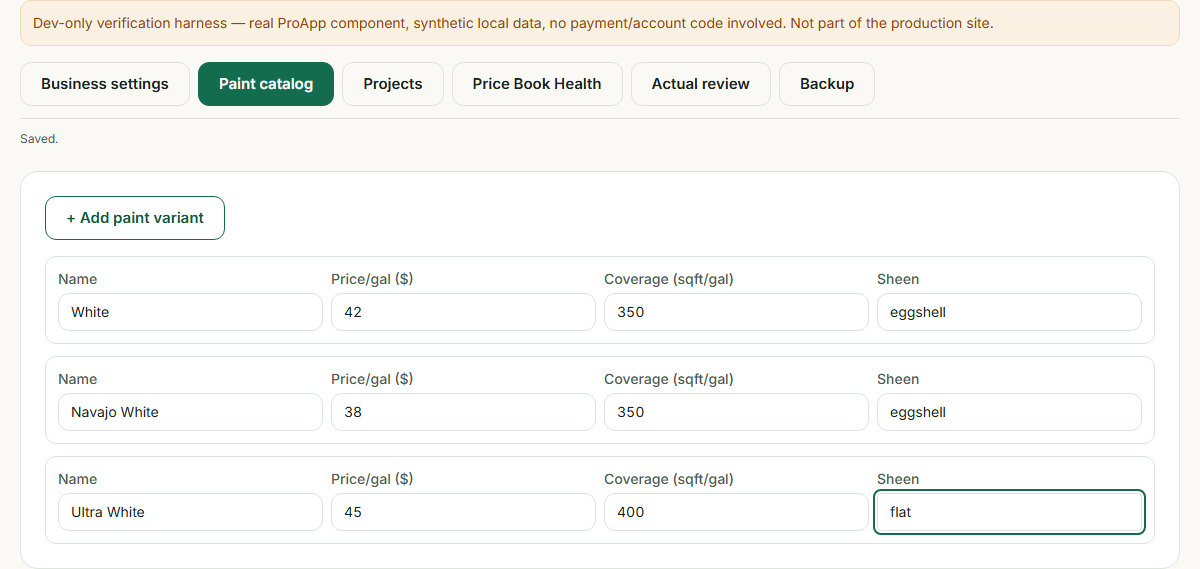
Your list of paint products — name, price per gallon, coverage, and sheen. Every room, surface, and Price Book Health service picks its paint from this list, so it's the one thing you need before you can build an estimate or add a service.
Why it helps you: enter a product's real price once and every estimate that uses it stays accurate — update a price here when your supplier's prices change, rather than hunting down every estimate that used it.
Projects
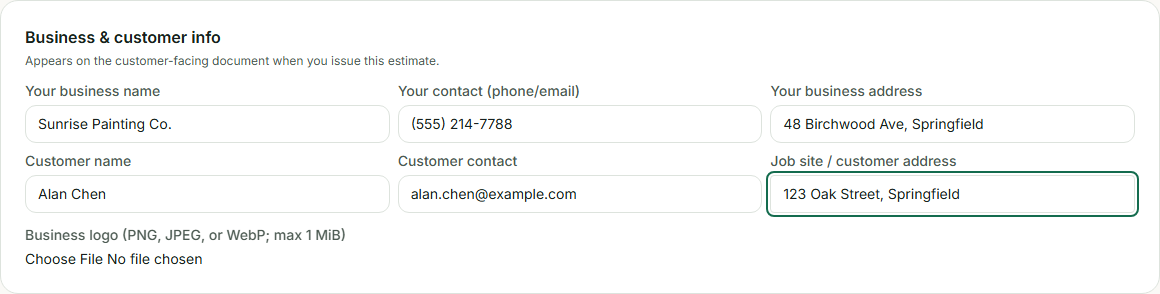
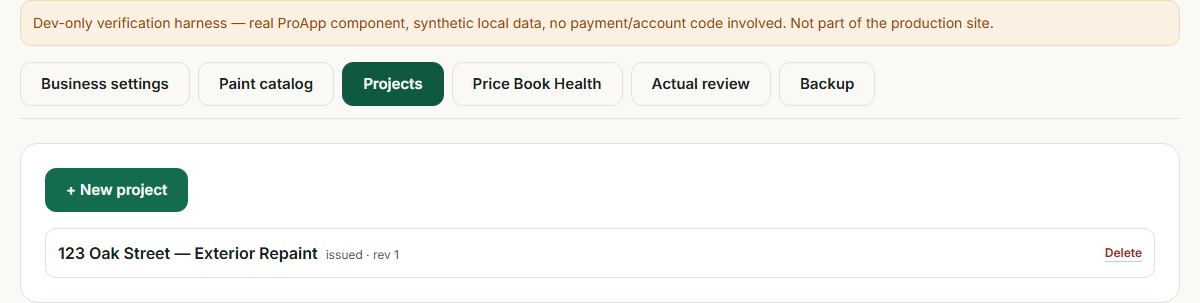
This is the actual estimate-building workspace — one entry per real job. Click "+ New project" and fill in your business info and your customer's info — this is exactly what appears on the customer-facing document later, so it's worth getting right up front.
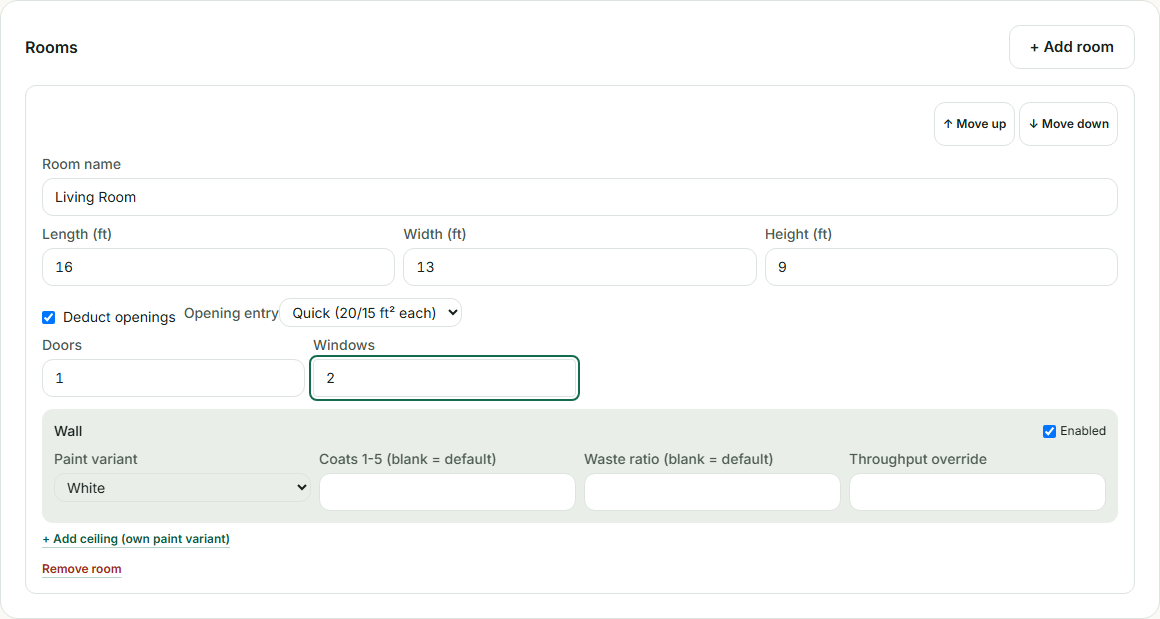
Then add each room — length, width, height, and how many doors/windows to deduct (a quick estimate, or exact measured openings). Each room automatically gets a wall surface, with an optional ceiling. Need a standalone trim run or door outside any room? Add those separately, right below the room list.
Why it helps you: the geometry math (gross wall area, minus openings, times coats, divided by coverage, plus waste) is exactly the kind of arithmetic that's easy to get wrong by hand on a real job with several rooms — here it's automatic and consistent every time.
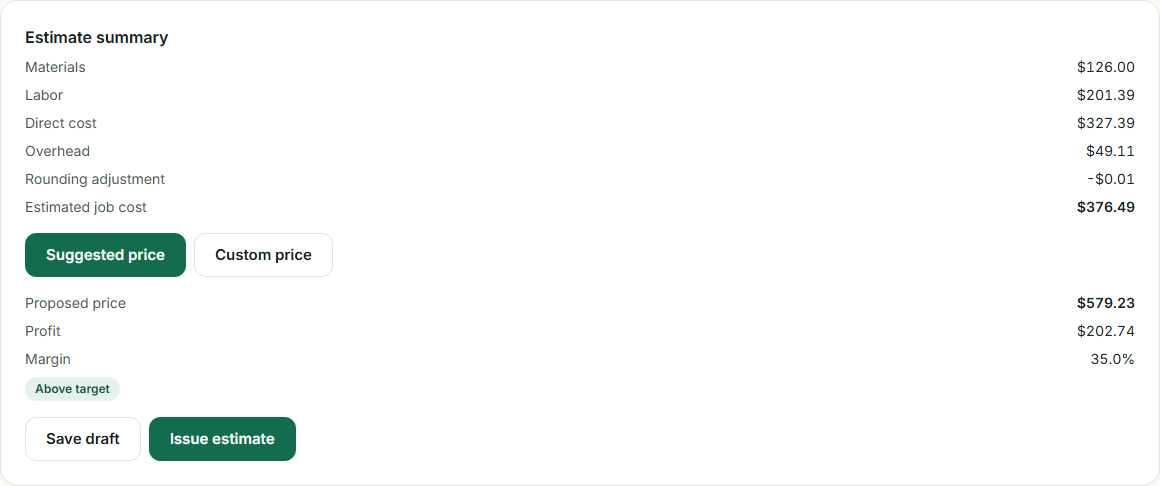
As you add rooms and surfaces, the Estimate summary fills in live: materials, labor, direct cost, overhead, and your estimated job cost, followed by a suggested price at your target margin (or your own custom price) with profit, margin, and a pricing-status badge.
Why it helps you: you see your real margin on this specific job before you send the quote — not after the job is done and it's too late to change the price. "Save draft" works at any point, even on an incomplete estimate; "Issue estimate" is only enabled once the calculation is complete, so you can't accidentally send a customer an estimate built on missing information.
Once you've saved a project, it shows up back in your Projects list, and in the Overview dashboard's recent-projects table.
Customer document
Once you issue an estimate, a clean customer-facing document appears below it — ready to print or save as a PDF: your business info, the project title and address, your customer's name, an estimate number and date, a line item, and a total price.
Why it helps you: this view never shows your cost, overhead, labor rate, or margin — only what the customer needs to see (the job, the price, your business info). You never have to remember to hide your numbers or build a separate quote template by hand.

Price Book Health
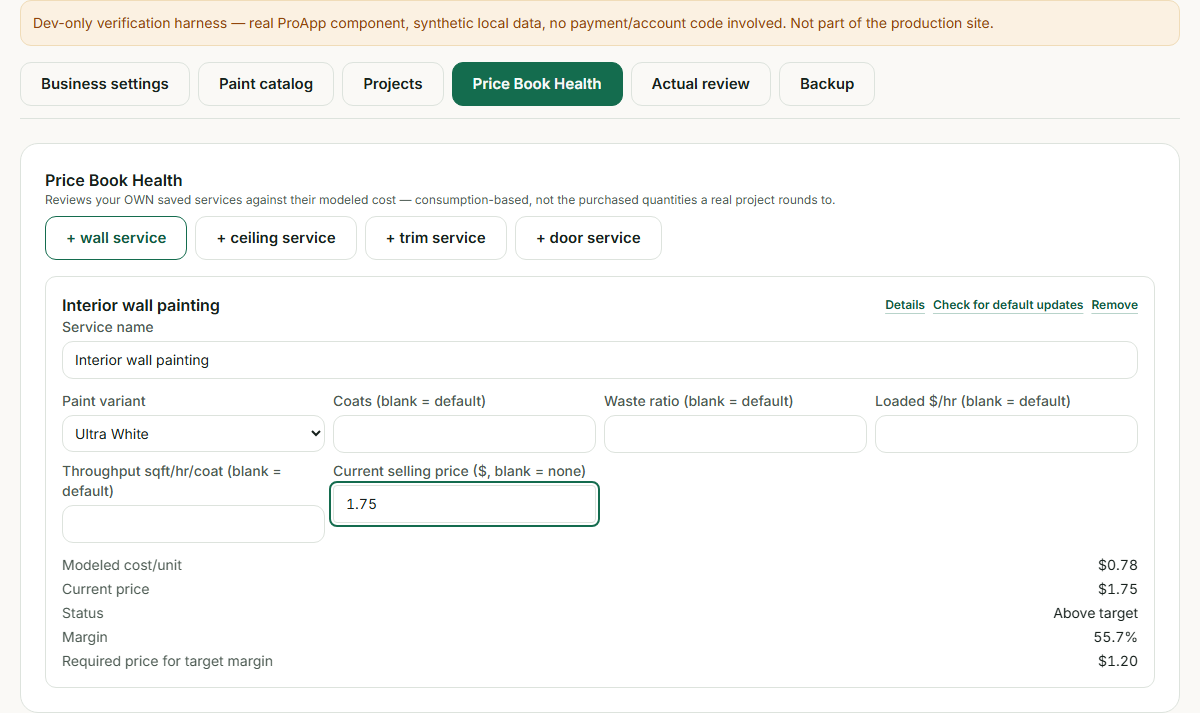
A separate concept from project estimating: your own standing list of named services (like "interior wall painting" or "standard door, 2 sides") each priced per unit — per square foot, per linear foot, or per door — independent of any specific job.
Why it helps you: this is where you sanity-check your standing menu prices, not a one-off job quote. If you've been charging the same per-square-foot rate for a while, Price Book Health shows whether that rate still covers your real modeled cost and target margin — catching a price that's quietly gone underwater as your material or labor costs changed, before it costs you money on the next ten jobs that use it.
Actual Costs
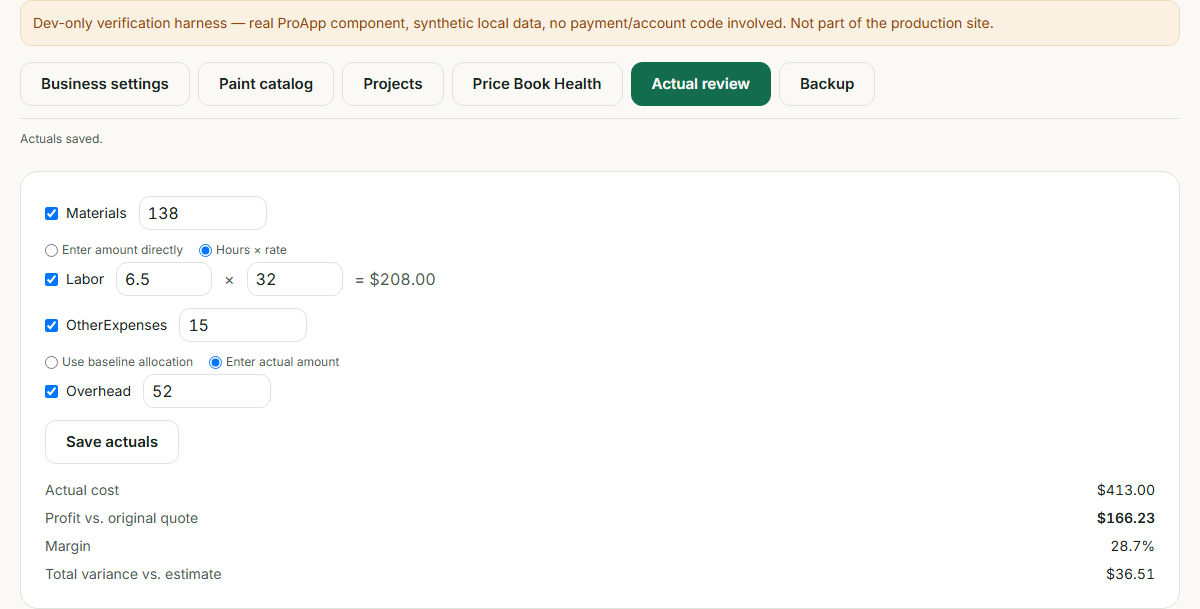
Once you've issued an estimate and finished the job, open that project and come back here to record what it actually cost — materials, labor (entered directly or as hours × rate), other expenses, and overhead (either the amount already allocated in the estimate, or a real measured figure).
Why it helps you: this closes the loop between what you quoted and what the job really cost — profit vs. your original quote, your real margin, and the total variance, all in one place. Over time, this is how you learn whether your rates and throughput assumptions actually hold up on real jobs, not just on paper.
Revisions
Every estimate you issue becomes a frozen revision — its numbers are locked in exactly as sent, even if you later change your business settings or catalog prices. Need to change something after issuing? Click "Edit," which creates a new draft revision without touching the one you already sent. Issuing that new draft automatically supersedes the old one, so there's always exactly one active revision per project. If a project has more than one revision, a row of buttons lets you look back at any earlier one — viewing an old revision never changes which one is currently active.
Why it helps you: you can always answer "what did I actually quote this customer, and when" — even after your rates have changed since then — without worrying that reviewing an old quote might accidentally reactivate it.
Backup & Data
Everything in Pro — every project, revision, actual-cost review, your catalog, your services, your settings — lives only in this browser. The Backup & Data tab is how you protect that.
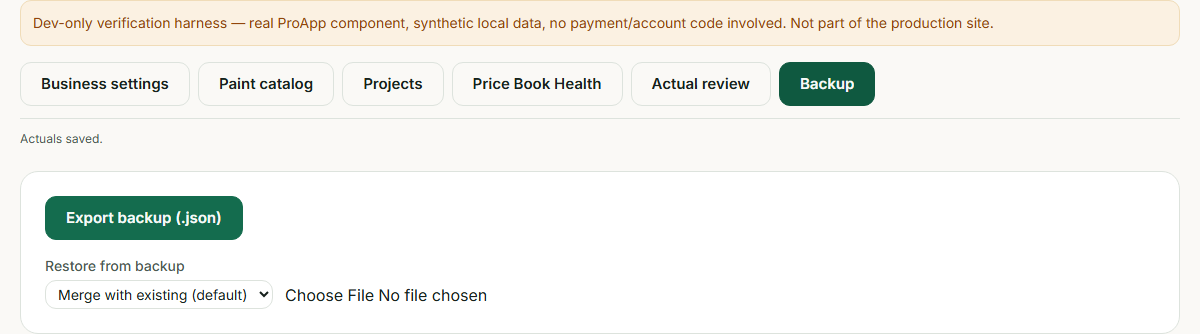
Export backup (.json) downloads everything in one file. Keep it somewhere safe — it's the only way to recover your data if you ever clear your browser's storage or switch devices.
Restoring from a backup file gives you three modes:
- Merge with existing (default) — previews exactly what would change (new projects, variants, services to add; identical records to skip) and lets you choose, per conflict, to keep your local version, use the imported one, or keep both. Nothing is written until you confirm.
- Import as copies — brings in every project from the file as a fresh copy, so you can pull data from an old backup without disturbing what's already here.
- Replace everything — a full wipe-and-restore from the file, for starting over from a known-good backup. It forces you to download a backup of your current data first, so this is never a one-click accident.
Why it helps you: your data has nowhere else to live — there's no server copy — so a regular export is the difference between "I switched laptops" being a non-event and being a real loss. The three import modes mean moving data between devices, recovering from a mistake, or starting fresh are all deliberate, previewed actions, never a silent overwrite.
Ready to get started?
See the current Pro pricing — one-time payment, lifetime access, and the guarantee — or jump straight into the app if you're already unlocking it.
Not ready for Pro yet?
Four free tools cover a lot of ground before you need the full workspace:
- Painting job cost calculator — materials, labor, and overhead in, an implied price out.
- Interior painting cost calculator — paint and labor for a single room.
- Exterior painting cost calculator — paint and labor for a whole house exterior.
- Painting estimate template — a printable line-item estimate, no account needed.
Prefer one piece of software over separate calculators? Seewhat painting estimating software should do.
Still have a question?
Get in touch — we're happy to help.